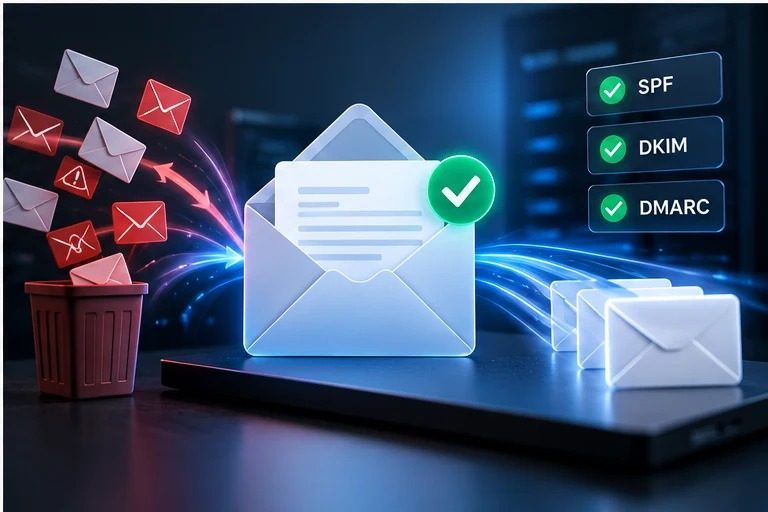
When a customer says your quotation never arrived, or website enquiries disappear into a junk folder, it is tempting to change email providers immediately. But business emails going to spam can have several causes: missing domain authentication, weak reputation, compromised accounts, misleading messages, broken form routing or a recipient's own filtering rules.
First identify what is happening. A message rejected by the receiving server is different from one delivered to spam, and both are different from a website form that never sent anything.
Start with the email delivery symptoms
| Symptom | Likely area to investigate | Next action |
|---|---|---|
| All outbound mail rejected | SMTP configuration, policy or DNS | Read bounce code and server logs |
| Mail delivered but in junk | Authentication, reputation, content or engagement | Inspect message headers and spam feedback |
| Website contact form enquiries missing | Form, application or sending service | Test submission and transaction logs |
| Some recipients receive, others do not | Recipient filtering or provider-specific rules | Compare delivery reports and headers |
What SPF, DKIM and DMARC actually do
SPF: which servers are authorized to send
Sender Policy Framework is a DNS TXT policy listing approved sending systems for a domain. Publish one valid SPF policy that includes legitimate providers; multiple SPF records can lead to evaluation problems. SPF alone does not guarantee inbox placement.
DKIM: cryptographic message signing
DomainKeys Identified Mail signs outgoing email so receivers can verify the signature using a public key published in DNS. Configure DKIM for each legitimate sending platform and check that signatures survive normal delivery.
DMARC: alignment, policy and reporting
Domain-based Message Authentication, Reporting and Conformance builds on SPF and DKIM. It checks alignment with the visible From domain and lets a domain owner publish a policy and request reports. Roll out monitoring, repair legitimate flows and then consider stronger enforcement. Abruptly applying a strict policy without inventorying senders can block valid mail.
Google's email sender guidelines explain authentication and other requirements for sending to Gmail personal accounts. Requirements differ by sending volume and message type, so refer to the current documentation for your use case.
Step-by-step email spam troubleshooting
- Read the actual failure evidence: save the bounce message or inspect full email headers, including Authentication-Results.
- Inventory all sending systems: business mailbox, website forms, CRM, newsletter platforms and transactional services.
- Check DNS: verify SPF syntax, DKIM selectors, DMARC alignment and MX records. Do not mistake MX records for authorization to send.
- Secure accounts: rotate exposed credentials, enable multifactor authentication and investigate unexpected outbound mail.
- Review reputation and sending patterns: avoid purchased lists, unexpected spikes and repeated mail to invalid addresses.
- Improve legitimate mail: use clear subjects, accurate sender identity, relevant content and working reply and unsubscribe options where required.
- Retest gradually: send controlled messages to accounts you manage, examine headers and monitor delivery outcomes.
Why website contact forms often fail to deliver
A WordPress or custom website may attempt to send email using a server function without correctly configuring an authenticated sending service. Form success on screen does not prove delivery. Ensure the application logs the send result and uses an authorized transactional email provider or properly configured SMTP. Use a business-owned From address and set the visitor's address as Reply-To where appropriate.
For a new website or a website redevelopment, test the entire form workflow before launch: validation, bot protection, notifications, logging, privacy notices and a clear confirmation to the visitor.
What not to do when emails land in spam
- Do not create multiple conflicting SPF records.
- Do not publish a strict DMARC enforcement policy before checking legitimate senders.
- Do not assume changing an email subject fixes broken authentication.
- Do not buy address lists or try to evade recipient filters.
- Do not ignore evidence of mailbox or website compromise.
How website security and email reputation connect
A compromised website can be abused to send unsolicited messages or host phishing pages. That can damage domain trust and require coordinated website and email cleanup. If you have suspicious redirects or browser warnings as well, start with our website malware and spam recovery guide.
Frequently Asked Questions
Why are my company emails going to spam?
Common causes include missing or misaligned SPF, DKIM or DMARC, weak sender reputation, unexpected sending patterns, content problems or recipient-side filters. Inspect evidence before deciding.
Does setting up SPF, DKIM and DMARC guarantee inbox delivery?
No. Authentication helps receivers evaluate legitimacy, but inbox placement also depends on reputation, recipient preferences and provider systems.
Why are WordPress contact form emails not arriving?
The website may not have a reliable authenticated sending service, the form may fail, or messages may be filtered. Test and log the full workflow.
Need help diagnosing business email spam?
Collect your domain name, sending provider and sanitized bounce or header details. Contact RKWS for a technical review; never send passwords, secret API keys or private customer email content in an initial enquiry.