A WordPress PHP upgrade compatibility checklist helps website owners test whether WordPress core, themes, plugins and integrations work on a newer PHP version before changing a live server. For the October 2026 security issues, patch the running PHP environment urgently, then use a staging-based compatibility process for larger branch changes. Always verify the live runtime after deployment.
The official WordPress PHP compatibility matrix and WordPress hosting recommendations distinguish WordPress core compatibility from your site's full plugin stack. This article focuses on making a change safely; it is not a replacement for the emergency guidance in the 21 October WordPress PHP security notice.
Why does WordPress PHP upgrade compatibility matter?
WordPress is written in PHP, but a typical site also runs third-party plugins, a theme, page-builder components, custom snippets and payment or CRM integrations. Code that worked with PHP 8.2 can produce warnings or errors on 8.4 or 8.5 if its dependencies are outdated.
Compatibility means the chosen PHP version supports the website's core application and all important user workflows. A site that loads its homepage but fails to deliver forms or complete orders has not passed compatibility testing.
Which WordPress and PHP versions should you verify first?
Check the installed WordPress version before selecting a new PHP branch. As of October 2026, WordPress's published matrix provides release-by-release information; it does not certify every theme or plugin on a live website.
| Component | Where to check | What to record |
|---|---|---|
| WordPress core | Dashboard Updates or Site Health | Installed version and planned upgrade |
| Current PHP | Tools > Site Health > Info > Server | Actual serving version, not only CLI version |
| Active plugins | Plugins screen and vendor documentation | Supported PHP range, last update and owner |
| Theme or page builder | Theme and builder changelogs | PHP support and critical layout dependencies |
| Custom code | Repository or developer handover | Deprecated APIs, external libraries and test coverage |
| Hosting stack | Provider control panel or support | Available patched PHP versions and restart method |
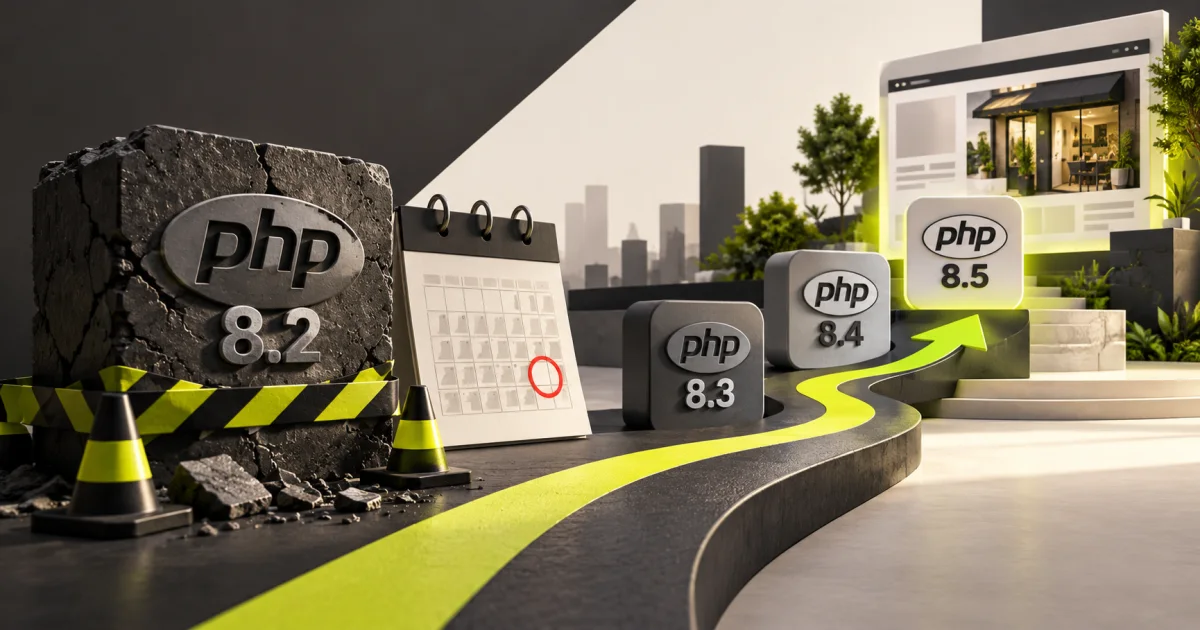
WordPress hosting guidance recommends PHP 8.4 or newer for suitable maintained installations, while PHP 8.3 and 8.2 offer shorter remaining support periods. Check the PHP lifecycle schedule before choosing a branch.
WordPress PHP upgrade compatibility: steps before staging
Preparation reduces the chance that the first compatibility failure is discovered by a customer. Use the following checklist before switching the live site.
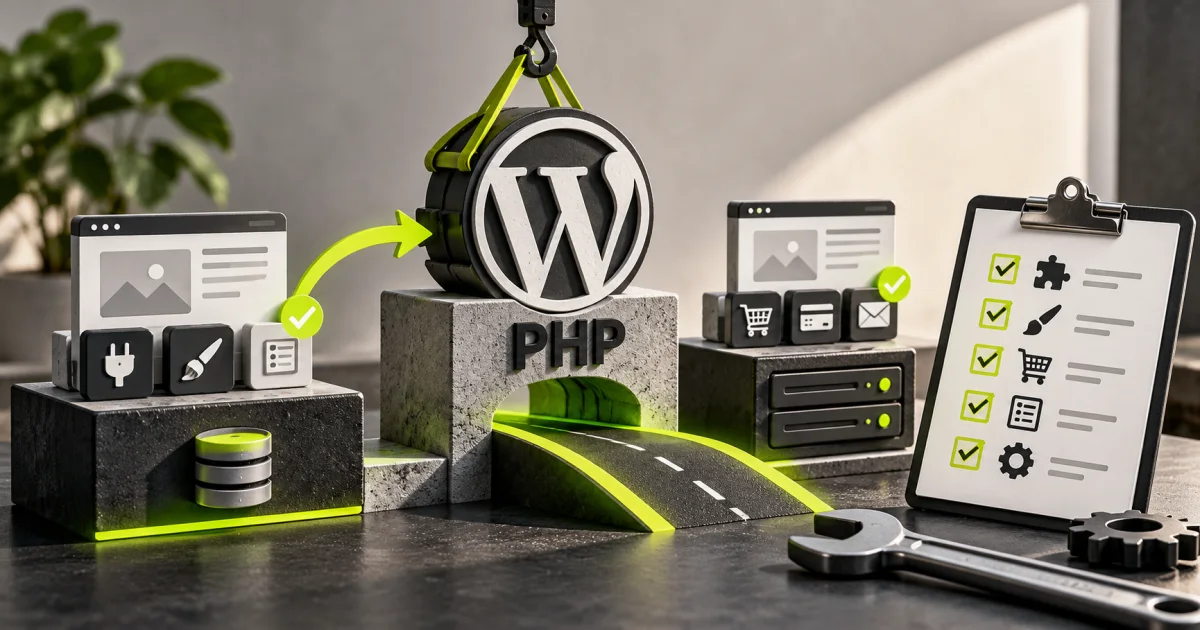
- Inventory extensions: export a list of active plugins and their versions, plus the current theme and custom snippets.
- Take complete backups: include database, uploads, plugins, theme, web-server settings and DNS-related deployment notes where relevant.
- Confirm restore ability: test backup access and record who can roll back a deployment.
- Update supported components: apply appropriate WordPress, plugin and theme updates in a safe test environment before switching PHP branches.
- Duplicate the environment: use a private staging website with representative data and the same active extensions.
- Set a release window: choose a maintenance time with named owners and a realistic rollback route.
For general safeguards outside PHP compatibility, see our website security checklist and website maintenance workflow.
How do you test plugin and theme compatibility after changing PHP?
A staging site allows failures to be found without interrupting visitors. Change staging to the proposed patched PHP build, then examine both visible functionality and the relevant server error logs.
Test themes, layout and administration
Visit the homepage, internal pages, mobile menus, media galleries and account pages. Open the editor and save a test draft. Confirm menus, shortcodes, blocks and page-builder widgets render without unexpected errors. Verify that new PHP warnings are not displayed publicly.
Test forms, checkout and automated jobs
Send a contact form and verify it arrives at the correct inbox or CRM. For WooCommerce, exercise a sandbox checkout, shipping calculation, coupon, confirmation email and order update. Trigger representative scheduled tasks, integration webhooks and API endpoints.
Review logs and deprecated code
Review PHP and application logs for fatal errors, missing extensions and deprecated calls. Fix the offending code or upgrade the responsible component rather than suppressing failures. Track which issue was introduced by the PHP change and which already existed before it.
What are common PHP upgrade errors on WordPress?
Not every symptom has the same root cause. The table below is a practical diagnostic starting point, not a substitute for reviewing your actual error logs.
| Symptom | Likely area to inspect | Next safe action |
|---|---|---|
| Critical error or white screen | Fatal PHP error in theme, plugin or custom code | Check server logs and disable the failing code on staging |
| Broken checkout or payment | Gateway extension, callbacks or dependency incompatibility | Test vendor-supported version in sandbox |
| Contact form stops sending | Mail integration, API dependency or runtime error | Inspect logs and verify an end-to-end test submission |
| Images or PDF generation fails | Missing or differently configured PHP extension | Compare modules and hosting settings |
| Admin page behaves differently | Deprecated code, caching or JavaScript/plugin conflict | Reproduce on staging and isolate the responsible component |
How do you deploy a tested PHP upgrade to production?
A successful staging test supports a controlled release, but production may use different caching layers, workers or extensions. Check that the live environment matches the tested configuration.
- Confirm a recent backup and the exact target PHP build.
- Apply code or plugin fixes already tested in staging.
- Switch production to the patched PHP build following provider instructions.
- Restart or replace affected PHP workers and confirm the actual web-serving version.
- Run smoke tests on homepage, editor, login, lead forms, payment and APIs as applicable.
- Watch server logs, uptime, transactions and enquiry delivery after the change.
For the 2026 PHP2Shell emergency, PHP's security notice says the runtime patch is the complete solution; postponing all protection because one old plugin needs testing is not an acceptable long-term plan. Arrange urgent exposure reduction with the host while completing any unavoidable compatibility work.
What about SEO and website performance after a PHP change?
Check that the server returns successful responses for important pages, redirects still target the correct URLs, canonical tags and sitemaps have not changed unexpectedly and critical content renders correctly. Compare real page performance rather than assuming every PHP update makes a site faster.
If the site also needs a large visual overhaul, separate the PHP runtime migration from the redesign where practical. Our website redesign planning guide covers content and SEO continuity when a broader revamp is necessary.
Frequently asked questions about WordPress PHP compatibility
How can I tell if WordPress supports PHP 8.5?
Check the official matrix for your core version, then test active plugins, the theme and custom code. Core compatibility alone is not full-stack compatibility.
Can a PHP update break WordPress plugins?
Yes. Code may rely on removed or changed behaviour, outdated dependencies or missing PHP extensions. Staging tests reveal problems before deployment.
Should I back up before changing PHP?
Yes. Back up the files, database and important configuration, and ensure you can restore them if the new runtime exposes incompatible code.
Does upgrading WordPress itself fix the October 2026 PHP flaws?
No. The PHP runtime must be patched separately from WordPress core and plugins.
Final WordPress PHP upgrade checklist
Inventory, back up, stage, test, patch, verify and monitor. If any business-critical form or checkout fails, document the specific error and resolve it before considering the migration complete. For help planning the change, contact RKWS with non-sensitive version details and a list of active extensions.
Frequently asked questions
How do I check if WordPress supports PHP 8.5?
Consult the official WordPress PHP compatibility matrix for your installed core version, then test every active plugin, theme and custom integration in staging.
Can a PHP update break WordPress plugins?
Yes. Plugins or themes using deprecated functions, unsupported dependencies or assumptions about PHP behaviour may fail after a branch change.
Should I take a backup before changing PHP versions?
Yes. Capture website files, database and configuration, verify that the backup is restorable and plan a supported rollback for the runtime.
Does WordPress updating to a newer version fix PHP2Shell?
No. The October 2026 PHP2Shell flaws exist in PHP itself. Patch the server runtime even if WordPress and its plugins are fully updated.